
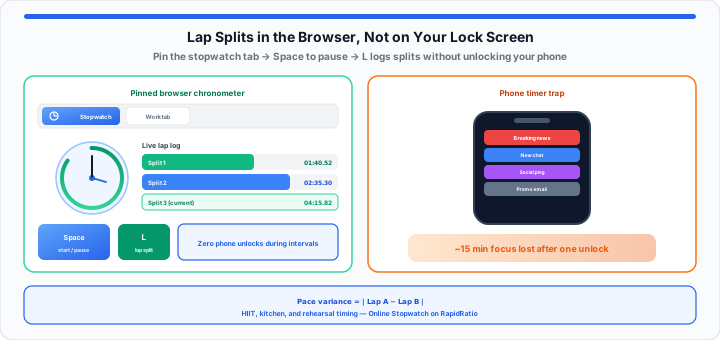
You are halfway through a grueling 60-second plank interval. Sweat drips onto your rubber gym mat as your abdominal muscles shake. Wanting to check how many seconds remain, you reach out to tap your phone screen. The display immediately lights up with three lock-screen text alerts, a breaking news banner, and a social media notification. You reflexively swipe to clear an alert, get pulled into a chat thread, and watch 15 minutes of hard-earned workout momentum evaporate before you even set the weight back down.
When I am monitoring circuit laps at the gym or optimizing daily workflow intervals, I see smartphone notifications ruin human focus every single day. Relying on a feature-bloated mobile application for simple timing is like mounting a complex electronic laboratory wall unit in your living room—you have to flip digital switches, configure user data profiles, and clear biometric lock screens just to trigger a basic count. A zero-install browser clock interface operates like a classic mechanical stainless-steel pocket watch resting right on your bench or desk. You tap Start with a single action, and the display sweeps forward with zero resistance.
The Smartphone Distraction Loop: Why Mobile Timers Kill Flow States
In our athletic timing tests, using a mobile device as a workout or kitchen clock introduces cognitive friction. Modern mobile operating systems are engineered to capture user attention through notification delivery models. The moment you unlock your phone to pause a timer, push alerts compete for your visual focus.
Whether you are tracking 400-meter track splits, timing sourdough loaf autolyse rests, or executing Pomodoro focus blocks at your desk, precision requires uninterrupted awareness. Consider how pacing consistency drops when timing focus breaks down:
***Pace Variance = Lap Time A − Lap Time B***
***Interval Consistency % = (Target Interval Time / Actual Elapsed Time) × 100***
When your attention splits between an active timer and incoming phone notifications, your pace variance grows wildly. A three-second delay looking at a mobile screen disrupts your breathing cadence during high-intensity interval training (HIIT) or causes a delicate sugar reduction to scorch on the stovetop. Browser-based timing isolates the clock on your display, removing mobile push alerts so you can keep your focus entirely on your physical output. Log splits with the Online Stopwatch; for fixed countdown blocks instead of open-ended elapsed time, pair it with the Online Timer or structured cycles on the Pomodoro Timer.
Step-by-Step: Triggering and Logging Precision Lap Splits
To get started recording clean lap times during repetitive workout circuits or precision culinary tasks without picking up extra hardware, execute these four procedural steps:
- Launch a dedicated browser chronometer tab: Open the Online Stopwatch on a desktop laptop or tablet mounted near your workspace or rack.
- Initiate the master clock with a single touch: Click Start or press Space to track total elapsed time down to hundredths of a second on the display.
- Capture milestone split marks sequentially: Click Lap or press L at the end of each workout lap, sprint interval, or culinary step to log intermediate times while the master counter continues running uninterrupted.
- Audit and clear your split history: Review the ordered lap list below the main clock face—each row shows cumulative elapsed time from Start. Subtract consecutive rows to compare split deltas, then click Reset for your next set.
Need a wall-clock view with stopwatch, timer, and timezone tabs in one place? Open the Online Clock. To translate long elapsed blocks into billable or training hours, run totals through the Time Duration Calculator or Hours Calculator after your session.
On the Online Stopwatch, keyboard shortcuts work like hardware lap triggers on a track-side chronometer: Space starts, pauses, or resumes the master clock; L logs a split while timing continues; Reset clears the timeline for your next circuit. That keeps your eyes on the mat, stove, or keyboard instead of hunting for tiny on-screen buttons.
Keeping the Clock Alive: Avoiding Browser Tab Sleep Controls
Modern web browsers like Google Chrome and Microsoft Edge use aggressive memory-saver algorithms. When a tab sits in the background without active user interaction, the browser engine may suspend JavaScript execution, causing simple clock interfaces to freeze or drop precision on screen updates.
In my experience auditing kitchen workflow intervals and fitness tracking setups, you can prevent tab sleep with two quick configurations:
- Pin the utility tab: Right-click the browser tab header and select “Pin.” Browsers treat pinned tabs as high-priority processes, keeping background timers active.
- Isolate the tab in a dedicated window: Pull your timing tab out into its own standalone browser window alongside your active work screens. Chromium systems maintain active frame rates for visible windows, helping continuous high-resolution timer ticks.
For countdown-focused deep work without unlocking your phone, see our browser tab timer deep work guide, which covers pinned-tab alerts and interval blocking tables alongside the Online Timer.
The Reference Timing Chart: Customizing Blocks for Focus, Fitness, and Food
In practical environments, different disciplines require distinct timing mechanics. An espresso extraction demands sub-second precision over 30 seconds, while sourdough dough proofing requires long, low-maintenance counts across several hours.
| Activity / Use Case | Target Duration | Primary Timing Mode | Operational Benchmark |
|---|---|---|---|
| HIIT track sprints | 400 meters per interval | Lap split mode | Compare lap row deltas to keep output steady across 8 sets |
| Sourdough autolyse | 30 to 45 minutes | Continuous count-up | Track exact hydration rest before adding starter |
| Pomodoro focus sprints | 25 minutes active / 5 min rest | Block countdown | Use Pomodoro Timer for chained work/rest phases |
| Espresso extraction | 25 to 30 seconds | Hundredth-second precision | Target a 1:2 yield ratio inside a tight 3-second window |
| Barbell rest intervals | 90 to 180 seconds | Count-up stopwatch | Ensure full recovery between heavy compound sets |
Moving onto practical kitchen setups, instead of fumbling with wet fingers on a phone screen over a boiling pot or losing workout intensity to random lock-screen messages, load the Online Stopwatch on an open desktop tab to clock split seconds with lap logging. Runners comparing pace over known distances can cross-check splits with the Pace Calculator after logging lap timestamps from the track.
Open Online Stopwatch Open Online Timer
Frequently Asked Questions
Will an online stopwatch still keep accurate time if I switch to a different browser tab?
Yes. The RapidRatio stopwatch relies on high-resolution timestamps rather than naive once-per-second counters. When you switch back to the timer tab, elapsed time reflects real clock time since Start minus any paused intervals—display updates may be less smooth in background tabs, but the total stays aligned with wall time while the tab remains open.
How do you accurately measure lap splits versus total elapsed time on a digital clock interface?
Total elapsed time tracks the continuous duration from the moment you click Start. Each lap records cumulative elapsed time at that instant—not the gap since the previous lap. Subtract consecutive lap rows to get split deltas between milestones (such as a single 400-meter lap) while the master clock keeps running.
Does an online stopwatch utility use battery data or heavy network bandwidth when running in the background?
No. Once the web page finishes its lightweight initial load, the chronometer engine runs locally inside your browser. It consumes near-zero network data and places a negligible processing load on your device compared with native desktop suites or notification-heavy mobile timer apps.
Can I use keyboard shortcuts to trigger start, lap, and pause on a desktop web stopwatch?
Yes. On the RapidRatio Online Stopwatch, press Space to start, pause, or resume. Press L to record a lap while the stopwatch is running. Shortcuts ignore keypresses while you are typing in other fields, so you can keep hands on the keyboard during desk workflows.